When your Dell printer displays “Offline” or print to another printer, then there are only two reasons behind the same: either the problem lies within the computer driver, or the printer has got a changed network address. Following are the ways of figuring out the difference between both cases and solving them accordingly with Dell Printer Support.
Dell brand printers continue to be used in many offices and support issues relating to such printers have common patterns. The following is a description of the two most common problems. The procedures described below make use of the Windows OS features, although specific menu options and dell printer driver download sites will depend on the model and version of Windows used.
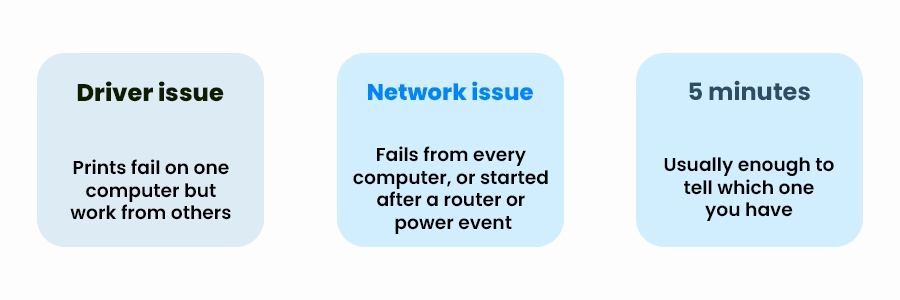
driver issues network issue 5 minutes
Step one: work out which problem you have to address with Dell Printer Support
What you see
Likely cause
Printing fails on one computer, works from others
Driver or port problem on that computer
Fails from every computer at once
Network problem, or the printer itself needs attention
Worked yesterday, “offline” today, nothing else changed
Printer’s network address probably changed
Several copies of the same printer in the Printers list
Duplicate drivers or ports from repeated installs
Started right after a Windows update
Windows may have swapped in a generic driver
Fixing a Dell Printer Driver conflict
Remove the printer and its duplicates: In printer setting on Windows, delete all entries of the printer including those with “Copy 1” or something similar in the name. Leaving such duplicates can be the reason why the same dell printer driver issue reoccurs again.
Remove the old driver, not just the printer: Sometimes even after removing the printer, its driver will not be removed. You have to access Print Server Properties and then select Drivers from there and remove the driver package of that printer.
Restart the Print Spooler service: A problem caused by a printer which fails to print properly because there is a “stuck” document waiting in the Windows Print Spooler queue. The Print Spooler needs to be restarted.
Install the driver for your exact model: Download the appropriate dell printer driver for your model and version of Windows from the manufacturer’s Dell Printer Support website rather than using what Windows has automatically chosen for you. Generic drivers are able to print, but lack special features like duplex or tray selection.
Check whether a Windows update replaced your dell printer driver
Should the problem arise immediately after the update, verify whether the driver listed in the printer properties matches the driver that you have originally installed. The use of a generic or class driver instead of a specific model driver is another clear indicator, and reinstalling will typically resolve the issue.
Fixing a Dell Printer Network address problem
Most Dell Printers Network printers in offices are networked and located using their IP address. When the printer has an address assigned to it automatically, this address may be changed when there is a restart of the router or any power failure. The computers still have the old address stored in them, hence showing the printer as being offline while the printer is actually online.
Dell Printer Network setup that stays fixed
Print a configuration or network status page, from the printer to see its IP address.
Compare that IP address to the address that is listed in the computers printer port settings. If the IP address does not match that confirms the diagnosis.
Give the printer a fixed address either by setting an IP on the printer or preferably by creating a DHCP reservation on the router. By doing this the printer will always receive the fixed address.
Next update the port, on each computer to the fixed address. After you do that print a test page.
Record the address somewhere your team can find the address time.
A wired connection is usually better for an office printer because there is no chance of signal drop, reconnection from sleeping mode and dell printer error. Wi-Fi will work; however, with the changing IP address, this is what causes our system to go “offline” most often.
That dell printer error usually means a general driver is being used of the one made just for the model. Putting in the driver usually brings back all the options.
In case a repeated dell printer troubleshooting problem arises despite a clean installation of the driver and correction of the network IP address, it may be advisable to compare the total costs incurred during the repairs against those needed for replacement.
To solve a Dell printer error, one should reboot the printer and PC, examine the connection between them (USB or Wi-Fi), and delete all stalled print jobs in the printer queue. If the problem persists, use the Windows printer troubleshooter, make the printer default and install the latest version of the printer driver from Dell. Dell suggests checking the dell fixing error code of the printer in the printer manual.
Configuring the printer to get a static IP address will involve going into the printer’s network settings and assigning it an IP address that is fixed or setting up a DHCP reservation via the router. Afterwards, change the port settings of the printer in the computers connected to the printer and ensure there is no problem by printing a test page.
Conclusion and Next Steps
Most of these dell printer troubleshooting steps boil down to either a proper installation of the printer driver or a printer address that does not change. In case all these actions fail, this is the right time to consult a Dell Printer Support that will be able to check both the printer and the network. Talk to our IT team and we’ll walk through it with you.