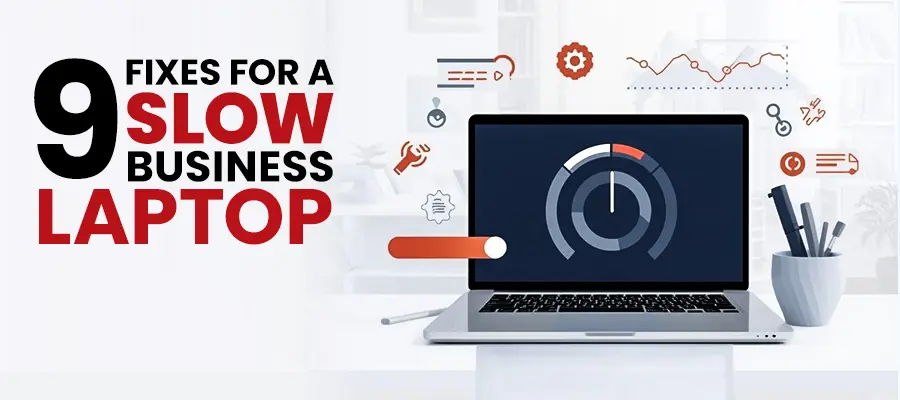
When the laptop becomes slow, try these 9 fixes: Restart the laptop, close other heavy application programs and tabs in the browser, delete temporary files and clear up the disk space, disable the programs that start up automatically in Windows, scan the laptop for malware, update Windows and drivers, reduce visual effects, clear up disk space for overheating and failing hardware, upgrade RAM or replace HDD with an SSD disk. If there are any slowdowns, that could be due to bloatware, startup apps, or low disk space, and if so, then cleaning it up first could give you some much-needed speed without any hardware changes.
When you first purchased your laptop, it was quick. It now takes 3 minutes to launch, programs freeze regularly, and switching between browser tabs is akin to waiting on a dial-up connection. If this is your office laptop, it’s stealing time and money from your business each day.
If you’re thinking about purchasing a new laptop for $1,000, you should consider these 9 laptop running slow fix steps. AI tools can help with productivity on slow laptops. AI tools to boost your business in 2026. In most cases, a slow laptop for business can be brought back to its original speed for $0 to $200. The challenge is to understand what is really slowing down the process—and what is needed to get it moving again.
Why Business Laptops Slow Down Over Time
Common causes of a slow laptop include one or more of these—and if you can correctly identify the cause, you will know the fix much quicker. Slow laptop? Might need IT support. How to find a trustworthy IT company? Knowing the reason why a laptop is slow is the first step in solving the problem:
- Start up programs: Software builds up over time. All the applications you install will run upon startup. After 2-3 years, dozens of programs will be loading when you boot up, and they will occupy RAM and processor usage before you open your first browser window.
- Not enough RAM: Applications are more RAM hungry today than they were when your laptop was bought. The 8Gb laptop that was working perfectly in 2021, may now cause trouble to software and browsers.You may have a hard drive in your laptop, as it is most likely slowing it down.
- Laptop Hard Drive (HDD): If your notebook is equipped with a spinning hard drive, it’s most likely contributing to its slowdown. HDDs are slower to use for routine read and write tasks than SSDs, between 5 and 10 times slower, and even slower as they get older.
- Near full storage: If a hard drive or SSD becomes full (over 85%), performance is suffered as the operating system requires temporary files and virtual memory, which are not present.
- Malware or unwanted background processes: Software which runs in the background without the user’s knowledge uses processor and memory continuously.
- Old Software and Drivers: Software and drivers that haven’t been updated for a long time result in additional overhead when the system is trying to function in a manner that is not compatible with the software and drivers.
- Overheating: If a laptop gets too hot, it slows down its processor to avoid damage — and doesn’t sound that different from a slow laptop!
9 Fixes for a Slow Business Laptop
Use this guide to speed up your laptop step by step. Work through each fix in order for the best results.
Fix 1: Full Restart (Not Sleep Mode)
If your laptop has not been completely rebooted in over 48 hours then reboot your laptop first. Sleep mode allows programs to run in the background. A complete shutdown and restart eradicates cached memory, clears temporary files and restarts the laptop in a fresh state.
If it resolves the slowdown for one day and then comes back, it is a startup program or RAM problem – proceed to Fix 2.
Fix 2: Disable Startup Programs
For most slow laptops, this is the best free laptop upgrade. Press Ctrl + Shift + Esc to open the Task Manager. Select Startup tab. As Windows starts, you will get a list of all the programs that you use. Turn off any software that isn’t necessary to start automatically when you boot up your computer — Spotify, OneDrive if you don’t want it to sync automatically, Teams if you open it manually, Zoom, and similar applications.
Once you’ve made the modifications, reboot the laptop and measure the boot time. After this one step, most laptops with too many start up programs are 40-60 % quicker. This one change can make a huge difference to the performance of your Windows laptop.
Fix 3: Check Available Storage
Right click on C: drive in Open File Explorer and choose Properties. When you have over 85% storage space full, the storage pressure is affecting your performance, indicated by the red bar.
Common sense remedies: go to Settings > System > Storage > Temporary files and remove them (usually frees 2-10 GB on most laptops). Clear Recycle Bin. Transfer large files (videos, large project files) to an external drive or cloud storage. Remove programs you no longer need from Settings > Apps.
Fix 4: Run Windows Update
Background processing such as pending Windows updates (particularly drivers) can slow things down. Open Settings > Windows Update and update all available. Once installed, re-start the laptop and test its performance.
If a particular update triggered the sluggishness (the laptop was slow as soon as an update), go to Settings > Windows Update > Update history > Uninstall updates > select the problematic update.
Fix 5: Run a Full Malware Scan
Open Windows Security (search for it in the Start menu), go to Virus and threat protection, and run a Full scan. Malware running in the background is a common cause of a laptop running slow — and it is invisible to the user because it deliberately hides its presence.
For more thorough scanning: download Malwarebytes Free (malwarebytes.com), run it alongside Windows Defender for a second-opinion scan. Malwarebytes frequently catches threats that Windows Defender misses.
Fix 6: Check for Overheating
Download the free tool HWMonitor (from cpuid.com/softwares/hwmonitor.html) and run it during normal use of the laptop for 10 minutes. Check the temperature of the CPU. If the CPU temperature keeps rising to 85-90 Celsius on a normal use then it is thermal throttling that is slowing the laptop down to avoid damage.
Common cause: dust accumulation inside the laptop that causes the fan and heatsink to become clogged. Solution: Professionally cleaning laptop, $75-$100, includes opening laptop, cleaning fan and heatsink, replacing thermal paste. This returns to normal operating temperatures and normal performance.
Fix 7: Adjust Windows Power Settings
If it’s set to battery saving or battery balancing mode, then the processor is deliberately set to not function at its full speed, so as to prolong the battery life. If your business laptop is plugged in for the majority of the time, you want to use the High Performance mode.
Go to Power Options, and then select High Performance in the Control Panel. If not display, click Show additional plans. The change does a simple change which can see a huge improvement in laptop performance on many business laptops set to balanced or eco mode.
Fix 8: Upgrade RAM (Hardware Fix, Professional Required)
Business laptops with 8GB of RAM are limited by this memory if you’re often working with the Microsoft 365 suite, browser with lots of tabs open, Teams video calls and accounting software all running at the same time. 8 GB was adequate in 2019. Nowadays, 16 GB is the standard for the required software.
The cost of upgrading from 8GB to 16GB of RAM is $40 to $80 for the hardware and one hour of professional time. The result: all programs run smoothly when switching between them, browser tabs don’t crash, and everything is once again responsive.
Note: many contemporary laptops don’t have RAM that can be changed, as RAM is fixed to the motherboard. A professional will be able to determine in a few minutes if your particular laptop is upgradeable.
Fix 9: Replace the Hard Drive with an SSD (Biggest Impact Fix)
An SSD upgrade for your laptop is, in fact, the single most transformative upgrade that you can get on your laptop. If your laptop has a traditional spinning hard drive, you may be able to hear a whirring noise when it is operating, then upgrading it to an SSD is the one thing that will transform your laptop. The laptop will feel like a different machine, it’s not an understatement.
- Reduces boot time from 2-4 minutes to 15-25 seconds.
- There is no delay after the program opens.
- Saving files only takes milliseconds rather than several seconds.
- All laptop experiences transform.
A certified SSD replacement will involve copying the files, programmes and settings from your existing drive to the new SSD, so there are no losses. Nothing is lost. The price of the upgrade is generally $100 to $180 inclusive of cost of hardware and labor
Get Your Free Consultation: https://ovroninc.com/get-a-free-consultation/
When to Buy a New Laptop Instead
In most instances, the above 9 fixes will improve business laptop performance. When to buy a new laptop: the laptop is more than 5 years old and the cost of the repair is greater than 50% of the replacement value or the motherboard or processor has broken down or been physically damaged beyond repair or the laptop is no longer powerful enough for current business software despite upgrades.
Frequently Asked Questions
The most common reasons for a laptop becoming slow at startup are a Windows update running in the background, a program that was installed at startup that uses laptop resources, a malware infection, or overheating of the laptop. If the laptop slowed down immediately after a Windows update, open Task Manager (Ctrl + Shift + Esc), and you’ll find out which program is using the most CPU or memory—that is typically the answer. Knowing what could be causing the slowdown is the quickest route to the correct solution.
Yes – in most cases. There are several common reasons that cause a laptop to run slow, and these can be fixed without replacement, including having too many programs that start when you boot your computer (free fix), having a full storage (free fix), having outdated drivers (free fix), overheating (clean, $75-100), RAM upgrade (upgrade, $100-150), or SSD replacement (replace, $100-180). Slow laptop repair depends on the cause of slow performance, but it’s not always the case that you need to purchase a new laptop
In 2026, a business laptop should have at least 16GB of RAM to support running Microsoft 365, a browser with multiple tabs opened, and the typical business software at the same time. 8 GB works well for the more basic uses but will experience limitations when using more modern software applications. If you need to work with a lot of data, design, develop, or run virtual machines, you’ll need 32 GB. Upgrading the RAM is the most economical solution to prolong a failing laptop’s usefulness.
A traditional hard drive (HDD) stores data on spinning magnetic disks—technology fundamentally unchanged since the 1950s. An SSD stores data on flash memory chips with no moving parts, making it 5 to 10 times faster for everyday read and write operations. An SSD upgrade for your laptop is the single most impactful performance upgrade available for most aging business laptops — and the results are immediately noticeable.
Yes. All of the solutions in this troubleshooter will directly work for laptops running slow Windows 11 problems. The Task Manager startup controls, Windows Update settings, power options, and Windows Security tools are the same as Windows 11. The process is the same – and so are the benefits.
Conclusion: Get Your Laptop Running Fast Again
You don’t need to purchase a new laptop if it’s running slow. In most instances, you can make your laptop run like brand new for little as much as the replacement cost.
Do the free fixes first (restart, disable startup programs, free up storage, update Windows, and scan for malware). These 5 steps completely solve most of the problem if your business laptop is slow.
If the issue persists, then an upgrade to the RAM or replacement of the SSD will make a huge difference to your laptop. Whether you need to upgrade your RAM, upgrade your laptop’s SSD, or get a professional clean (stopping overheating), the cost is almost always significantly cheaper than buying a new computer.
Ovron Inc provides remote and on-site IT support services to business owners and office managers who have a number of slow machines. We will know exactly what the problem is with your laptop and we can rectify it with the correct solution — quickly, cost effectively and without interrupting your work day
Ready to speed up your laptop? Contact us at ovroninc.com/get-a-free-consultation or call +1-833-837-4005 for a free consultation today.
Table of Contents