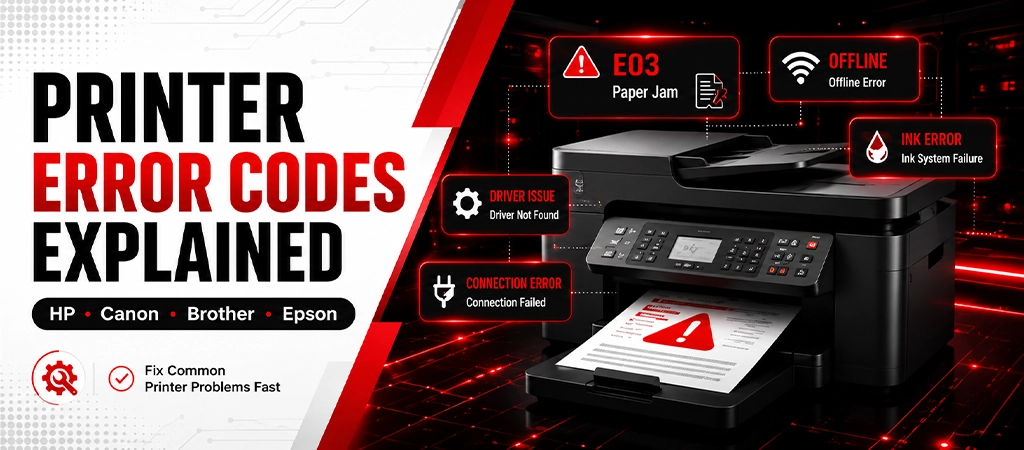
Each error code for a printer represents a problem: paper jam location, paper supply problem, communication problem, or hardware problem. The cardinal sin: repeatedly power cycling the printer while ignoring the error code. Hardware Errors (fuser errors, drum errors, motor errors) call for the indicated component to be serviced or replaced. If a printer fails, but the fault is only a hardware problem, it will still cause further damage if you power it on and off multiple times.
Any printer error codes are displayed as numbers, letters, flashes of lights or brief text messages and are frequently as cryptically formulated as possible. Error codes can indicate print quality hardware issues. ‘Error 49.’ ‘Support Code 5100.’ ‘Machine Error 50.’ What do these mean? But, most importantly, what do you do about them? The error codes refer to certain issues with a certain piece of equipment. When you know what it is, you know precisely where and how to look, where and how to fix it, and you don’t waste time trying different things, or do the wrong thing and end up causing the original problem. Spooler errors often show as specific error codes. fix printer spooler errors in Windows. This guide covers all of the major error codes per brand: HP, Canon, Brother and Epson, in an easy-to-look-up format.
HP Printer Error Codes — Complete Reference
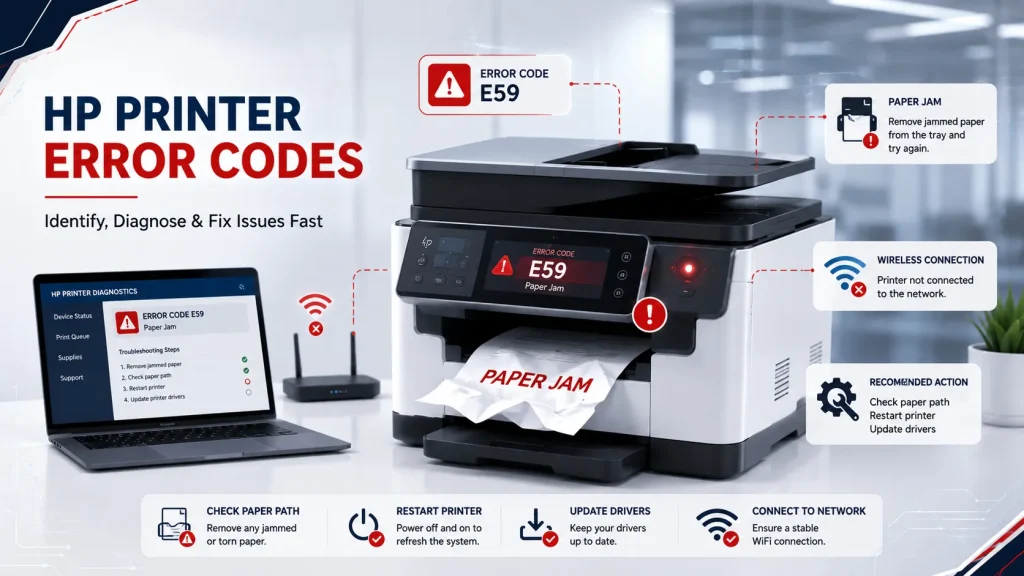
HP laser printers show the errors using the numbered codes (49, 50, 59, 79) and an optional decimal suffix to indicate the variant of the error. HP inkjet printers will show up as status messages within the HP Smart app or as blinking patterns on the light.
| Error Code | Problem Area | Meaning | Fix |
|---|---|---|---|
| 49 Error | Firmware / Data | Firmware error or corrupted print job data | Power off 60 sec. Clear all jobs. Update firmware at support.hp.com. If recurring, reinstall firmware. |
| 50.1 Fuser Error | Fuser — Low Temp | Fuser not reaching operating temperature | Power off 30 min. Restart. If recurring, fuser needs replacement. |
| 50.2 Fuser Error | Fuser — Warm-Up | Fuser taking too long to reach temperature | Power off 30 min. Restart. Check for power fluctuations. Replace fuser if recurring. |
| 50.3 Fuser Error | Fuser — High Temp | Fuser temperature exceeded maximum | Power off 30 min. Move printer away from heat sources. Replace fuser if recurring. |
| 50.4 Fuser Error | Fuser — Drive Circuit | Fuser drive circuit failure | Power cycle. If error returns immediately, fuser or fuser drive board needs replacement. |
| 51.XX Error | Laser Scanner | Laser scanner error | Power cycle. If recurring, laser scanner unit replacement needed. |
| 59.X Error | Motor | Internal motor error (X = specific motor) | Power cycle. If recurring, technician diagnosis needed. Internal motor fault. |
| 62 Error | Memory | Printer memory full or error | Power cycle. Reduce print job complexity. Install more printer memory if available. |
| 79 Service Error | Controller | Firmware/controller error from corrupt job | Clear all print jobs. Power cycle. Update firmware. Reinstall firmware if recurring. |
| 10.XX Supply Memory | Cartridge Chip | Toner cartridge not recognized by printer | Remove cartridge, clean copper contacts with dry cloth, reseat. Replace if not recognized. |
| 13 Paper Jam | Paper Path | Paper jammed — see paper jam guide | Open all access doors. Remove all paper including fragments. See Blog C2. |
HP Inkjet Error Codes and Light Patterns
| Error / Light Pattern | Meaning | Fix |
|---|---|---|
| Blinking power light — 2 blinks | Paper is out or not loaded correctly | Load paper. Adjust paper guides. Press Resume. |
| Blinking power light — 3 blinks | Paper jam | Clear paper jam from all access areas |
| Error: Printhead Problem | Printhead not seated or faulty | Remove and reseat printhead. Clean electrical contacts. Replace if error continues. |
| Error: Incompatible Cartridge | Non-HP or wrong cartridge installed | Remove cartridge, clean contacts, reinstall. Replace with genuine HP cartridge. |
| Error: Ink System Failure | Ink delivery system fault | Power cycle. If error persists, hardware service needed. |
| Carriage Jam | Print carriage blocked | Power off, open printer, remove any obstruction from carriage track. |
Canon Printer Support Codes — Complete Reference
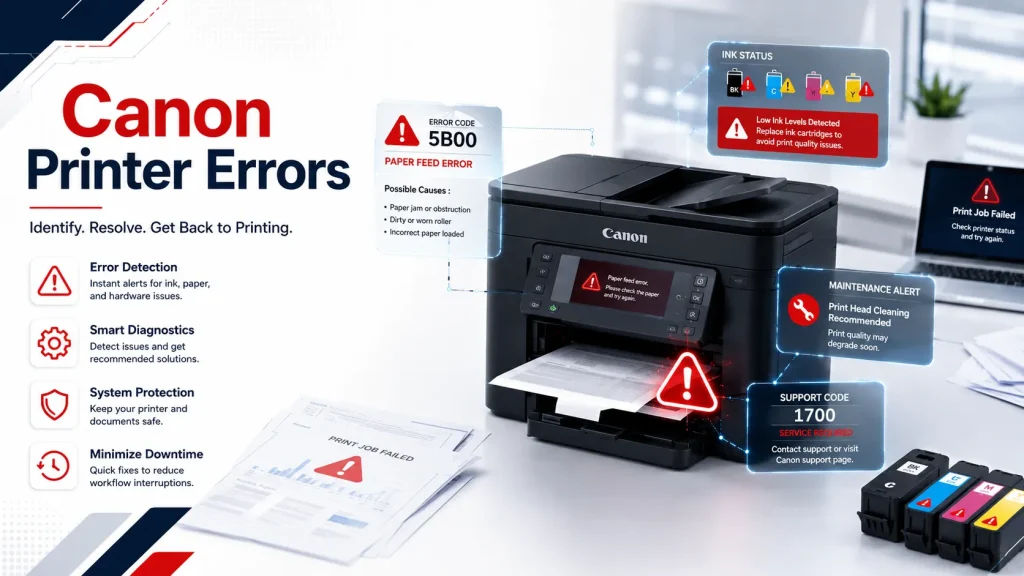
Canon printers have numbered support codes. Each code refers to a particular location or component. The support code is the first and foremost diagnostic code for any Canon printer problem. Repeated error codes may mean time to replace.
| Support Code | Product Line | Problem | Fix |
|---|---|---|---|
| 1000 | PIXMA | No paper or paper not loaded | Load paper. Align stack. Adjust guide rails to fit paper. |
| 1200 | PIXMA | Fuser not reaching operating temperature | Power off 30 min. Restart. If recurring, fuser needs replacement. |
| 1300 | PIXMA / imageCLASS | Paper jam — front paper path | Open front cover. Remove jammed paper toward you. Check for fragments. |
| 1303 | PIXMA | Paper jam — rear paper path | Remove rear access cover. Clear paper from rear path. |
| 1304 | PIXMA | Paper jam — duplex path | Open all covers. Remove paper from the automatic two-sided printing path. |
| 2110 | PIXMA | Paper size mismatch | Change paper in tray to match the size selected in the print dialog. |
| 5100 | PIXMA | Carriage error — carriage cannot move | Power off. Open printer. Remove any obstruction blocking carriage track. |
| 5B00 / 5B01 | PIXMA | Ink absorber full | Printer will not print. Ink absorber pad must be replaced by technician. |
| 5C00 | PIXMA | Ink absorber at limit — warning | Ink absorber approaching full. Plan for service. Printer still prints. |
| 6000 | PIXMA | Paper feed error | Fan paper stack. Clean feed rollers. Check paper weight compatibility. |
| B200 | PIXMA | Print head temperature error | Power off 10 min. Restart. If recurring, printhead replacement needed. |
| E14 | imageCLASS | Toner cartridge not recognized | Remove cartridge, clean chip contacts, reseat. Replace if not recognized. |
| E02 | imageCLASS | No paper in cassette | Load paper into paper cassette. |
| E32 | imageCLASS | Scanner unit is open | Close scanner cover until it clicks. Confirm all covers are fully closed. |
Brother Printer Error Messages — Complete Reference
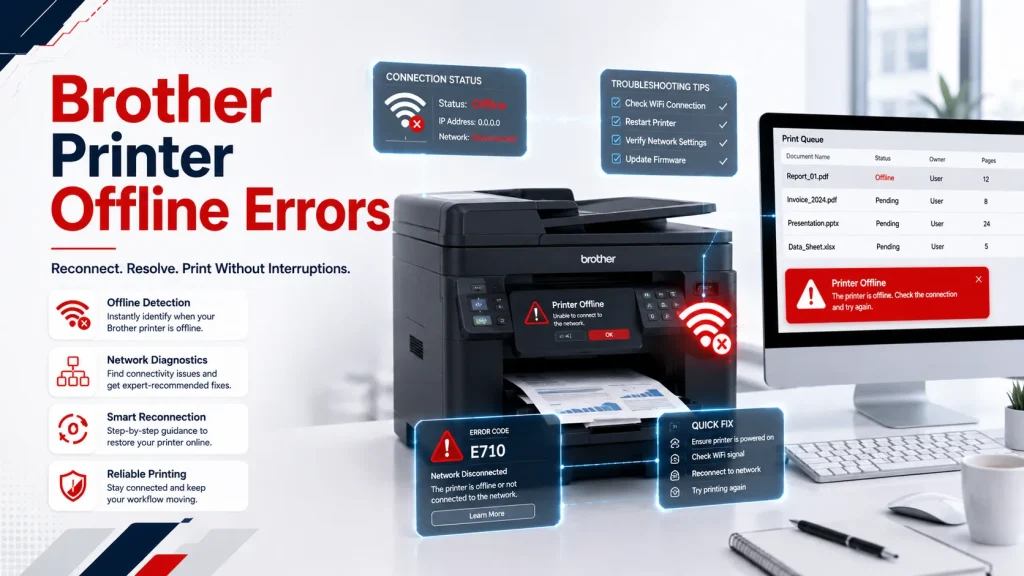
| Error Message | Meaning | Fix |
|---|---|---|
| No Paper | Paper tray empty or paper not loading | Load paper. Fan stack. Adjust guide rails. |
| Paper Jam | Paper jammed in paper path | Power off. Open all covers. Remove paper. Check for fragments. |
| Toner Low | Toner nearly empty | Rock cartridge gently side to side. Plan for replacement. |
| Toner End / Replace Toner | Toner cartridge empty | Replace toner cartridge. Reset toner counter after replacement. |
| Drum End Soon | Drum unit nearing end of life (~12,000 page threshold) | Order replacement drum unit. Printer still prints. |
| Replace Drum | Drum unit has exceeded page limit | Replace drum unit immediately. Reset drum counter after replacement. |
| Cover Open | A cover is not fully closed | Press each cover firmly until it clicks. Check all covers — including rear. |
| Unable to Print XX | Print mechanism error | Power off. Unplug power cable from wall. Wait 90 sec. Power on. |
| Machine Error XX | Hardware fault (XX = specific code) | Power cycle with full cable unplug. Look up code at support.brother.com. |
| Out of Memory | Large job exceeds printer memory | Reduce document resolution or split job into smaller batches. |
| Cooling Down | Printer temperature high — cooling required | Wait. Do not power off. Printer resumes automatically after cooling. |
| No Toner Cartridge | Cartridge not detected | Remove and reseat toner cartridge. Ensure it clicks into place. |
Epson Printer Error Light Patterns — Complete Reference
Each Epson printer has a warning light, ink light and power light that communicate errors with unique flash patterns. Patterns vary by model – check your model’s manual for the complete list of patterns – but these patterns are found on most Epson PIXMA and WorkForce models.
| Light Pattern | Meaning | Fix |
|---|---|---|
| Power light flashes, warning light off | Normal processing or temporary pause | Wait for completion. If stuck more than 2 min, clear print queue. |
| Warning light flashes 1 time | Paper jam or paper out | Load paper or clear paper jam. |
| Warning light flashes 2 times | Ink absorber near full | Service required soon. Printer still prints. |
| Warning light flashes 4 times | Ink absorber full — must be serviced | Stop printing. Contact technician for absorber replacement. |
| Warning light flashes 5 times | Printer error — general fault | Power cycle. If error persists, contact support. |
| Ink light flashes | One or more ink cartridges low or empty | Check ink levels. Replace empty or low cartridges. |
| Ink light solid on | Ink cartridge cannot be recognized | Remove, clean chip contacts, reinstall. Replace if not recognized. |
| Both lights flash alternately | Fatal hardware error | Power cycle. If error persists, printer may require service. |
| Warning light solid on | No paper loaded or paper not aligned | Load paper correctly. Align stack and guide rails. |
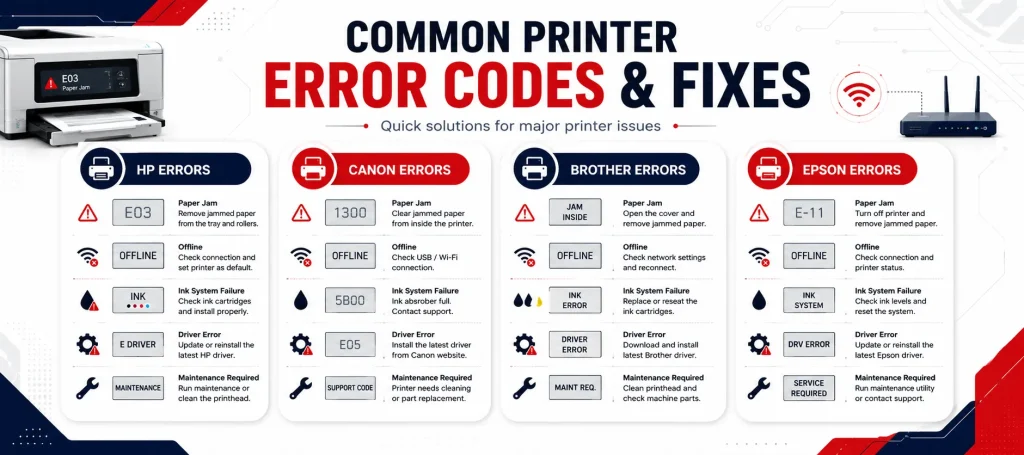
Error Codes That Always Require a Technician
Some error codes refer to hardware failure that can’t be resolved by the user – if The user tries to repair the damage or continues to work with the printer without fixing the hardware problem, User will only cause more damage and cost of repair. Error codes appear when the printer is not printing fix.
- HP 50.X (fuser error)—needs to be replaced with a fuser. Never reprint due to a fuser problem.
- HP 59.X (Motor error) — internal motor component failed. Technician diagnosis required.
- Canon 5B00 (ink absorber full) — replacement of the ink absorber pad is required when the pad becomes full. Until serviced, the printer will not print safely.
- Canon B200 (Printhead temp) — The printhead is overheating. Printheads and boards can be damaged in permanent ways if you continue to print.
- Epson 4-flash warning (absorber full) — same as Canon 5B00. Stop printing and contact the technician.
- Brother Machine Error codes—These are hardware fault codes that occur regularly after a reset; they must be diagnosed by a technician
Get Your Free Consultation: https://ovroninc.com/printer-troubleshooting/
Frequently Asked Questions
HP error 49 is a firmware or data communication error. It is usually caused by a corrupted print job sent from a specific application or a network communication fault. Power off the printer for 60 seconds. Clear all jobs from the print queue. If the error recurs, update the printer’s firmware from support.hp.com. Persistent 49 errors after the firmware update indicate a controller board issue requiring technician diagnosis.
Canon support code 5100 is a carriage error — the print head carriage that moves across the page cannot move freely. Power off the printer. Open the top cover. Look for any piece of paper, foreign object, or dried ink that is obstructing the carriage rails or carriage mechanism. Remove the obstruction carefully. If no obstruction is visible, the carriage motor or belt may have failed — technician service required.
Brother Machine Error 50 indicates a fuser unit error. Power off the printer with full cable disconnect and wait 90 seconds before restarting. If the error returns, the fuser unit needs replacement. Brother fuser replacement requires a technician due to the high operating temperature of the component.
The 4-flash warning on Epson printers indicates the ink absorber is full. This can be temporarily reset using Epson’s service reset tool, but the reset only clears the error counter — the physical ink absorber pad is still saturated. Continuing to print after a counter reset risks ink overflowing inside the printer and causing permanent damage. Replace the physical absorber pad through a service technician.
Conclusion
Error codes for printers can be confusing, but they can indicate what the problem is, if it is a paper jam, a problem with the cartridge, a problem with the firmware or a problem with the hardware. Knowing some of the usual HP, Canon, Brother, and Epson printer error codes can save time and prevent expensive damage. Driver-related error codes are very common. Never restart the printer repeatedly if there are hardware problems that appear in the printer’s error window – this will make the problem worse. If you find yourself having trouble with your printer, follow this guide to diagnose the problem in a timely manner; if that doesn’t remedy the problem, reach out to Ovron Inc. for expert printer repair and support. Call +1-833-837-4005 for fast remote or on-site assistance.
Table of Contents