A printer driver is the software that enables Windows to communicate with your specific printer model. Driver issues often cause spooler errors printer spooler error after driver install. Without the correct driver, Windows cannot send print jobs, and your printer will not appear correctly in Settings or will not appear at all. Driver problems are behind a significant number of office printer failures, and they become far more frequent after Windows updates, new computer setups, and printer model changes.
This guide tells about the complete driver installation process on Windows 10 and Windows 11. including how to cleanly remove the old driver, where to download the correct new driver, how to install it without errors, and how to troubleshoot the most common installation failures.
Why Printer Drivers Fail?
Understanding why drivers fail helps you prevent future problems. There are four main causes of driver failure in Windows environments.
Windows Updates Replacing Manufacturer Drivers
Major Windows updates, particularly feature updates like the annual Windows 11 version releases sometimes replace the printer manufacturer’s full-featured driver with Microsoft’s generic class driver. The generic driver allows basic black-and-white printing but disables features like duplex printing, tray selection, color settings, scanning, and fax. If your printer lost features after a Windows update, this is almost certainly the cause.
Driver File Corruption
Driver files can become corrupted during a system crash, a power failure that interrupts a print job, after a malware infection, or after a failed Windows update. Corrupted driver files cause error messages like ‘Driver unavailable,’ ‘Print processor does not exist,’ or the printer disappearing from Devices and Printers entirely.
Outdated Driver and Windows Incompatibility
Printer manufacturers release driver updates to maintain compatibility with new Windows versions. A driver written for Windows 10 version 2004 may not function correctly on Windows 11 version 24H2. Old drivers cause print quality issues, so fix print quality problems. If your printer stopped working after upgrading from Windows 10 to Windows 11, or after a major Windows 11 update, downloading the latest driver from the manufacturer resolves it in most cases.
Wrong Driver Installed
Installing a driver for a similar but different model number or using a driver for a different Windows version causes communication errors that appear similar to a corrupted driver. Always install the driver for your exact model and your exact Windows version. Correct drivers solve most ‘not printing’ issues, such as a printer not printing in Windows 11.
Step 1: Find Your Printer Model Number
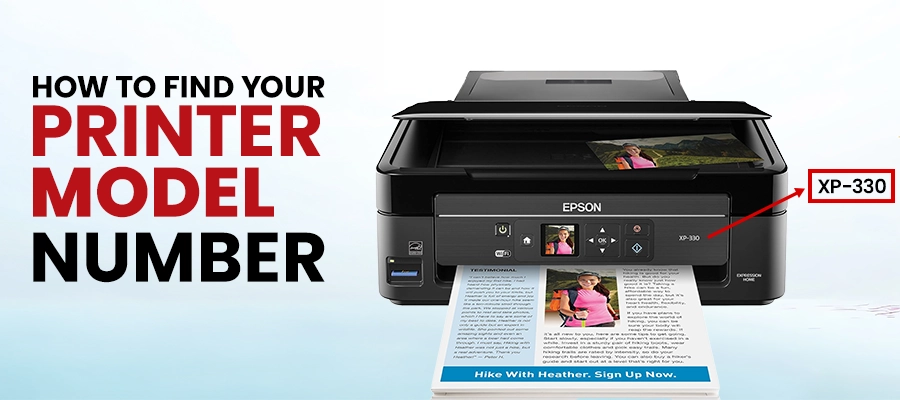
Your printer’s model number is essential. Do not guessing or abbreviate it. The model number is printed on a label on the front, top, or bottom of the printer. Examples of correct model numbers such as:
- HP LaserJet Pro M404n — not ‘HP LaserJet 400’
- Canon imageCLASS MF445dw — not ‘Canon MF445’
- Brother MFC-L3770CDW — not ‘Brother MFC L3770’
- Epson EcoTank ET-4850 — not ‘Epson EcoTank 4850’
Write the model number down exactly as it appears, including all letters, numbers, and suffixes. The suffix often indicates the variant (network represented as “n,” duplex wireless represented as “dw,” and color duplex network represented as “cdn”) and determines which driver is correct.
Step 2: Completely Remove the Existing Driver
Before installing a new driver, remove the existing one completely. If you remove it partial driver then it conflicts that prevent the new driver from installing correctly or from functioning properly after installation.
- Go to Start > Settings > Bluetooth & Devices > Printers & Scanners.
- Click your printer name and select Remove device. Click Yes to confirm.
- Press Windows + R. Type printmanagement.msc and press Enter. (If Print Management is not available on your edition of Windows, skip to step 5.)
- In Print Management, expand Drivers in the left panel.
- Find your printer’s driver in the list. Right-click it and select Delete. When prompted, choose to remove the driver and all associated files.
- Restart your computer before downloading and installing the new driver.
The restart decided all driver files were released from memory before the new installation began. Skipping the restart is one of the most common causes of ‘the driver could not be installed’ errors.
Step 3: Download the Correct Driver from the Manufacturer
HP Printer Drivers — support.hp.com
Go to support.hp.com. In the search bar, Here enter your complete model number. On the product page, click Software, Drivers and Firmware. Under Operating System, select your Windows version — Windows 10 (64-bit) or Windows 11 (64-bit) for most modern computers. Download the HP Easy Start installer, which detects your model and installs the optimal driver, or download the Full Feature Software and Driver package for complete functionality.
Canon Printer Drivers — usa.canon.com/support
Go to usa.canon.com/support. Click Printers in the products list. Here you Search your model number. On the product support page, click Downloads. Under Category, select Drivers. Select your operating system. Download the MP Drivers package (for PIXMA models) or the Printer Driver package (for imageCLASS models).
Brother Printer Drivers — support.brother.com
Go to support.brother.com. Click Downloads. Enter your model number and select your country (United States) and operating system. Download the Full Driver & Software Package This single package includes the printer driver, scanner driver, and all utility software. Do not download the printer-only driver if your Brother model has a scanner; the full package is required for scanner functionality.
Epson Printer Drivers — epson.com/support
Go to epson.com/support. Search your model number. Under the Downloads tab, select Drivers. Choose your operating system. Download the printer driver package. For Epson EcoTank and WorkForce all-in-one models, also download the Epson Scan 2 scanner driver if you use the scan function.
Xerox Printer Drivers — support.xerox.com
Go to support.xerox.com. Search your model. In Drivers & Downloads search for the Print Driver for your operating system. For businesses with multiple Xerox models, the Xerox Global Print Driver guarantees compatibility with all current Xerox devices by downloading it under Drivers for a model that offers it as an option.
Step 4: Install the Driver Correctly
- Firstly Confirm the printer is turned on before running the installer.
- Right click on the downloaded installer file and select Run as administrator. Running as administrator prevents permission errors that block driver installation.
- When the installer asks for connection type, select USB if the printer is connected by cable, or Network / Wireless if the printer is on then check your WiFi network.
- If you used wireless printers: confirm the printer and computer are on the same WiFi network before proceeding. Some installers require a temporary USB connection to complete wireless configuration follow the on-screen instructions if prompted.
- Follow all prompts in the installer. Do not skip steps and do not close the installer early. Some drivers take 5 to 10 minutes to install fully.
- When prompted to print a test page, print it. A successful test page confirms the driver is installed and communicating correctly.
- After that Restart your computer after the installer completes, even if the installer does not require it.
After restarting, open a document and print it. Also test any additional functions your printer has scanning, duplex printing, color printing to confirm all features are working under the new driver.
Common Driver Installation Errors and Fixes
| Error Message | Most Likely Cause | Fix |
|---|---|---|
| Driver unavailable | Wrong driver or corruption | Complete uninstall, restart, reinstall from manufacturer |
| Printer not found during installation | Printer not on network or wrong connection type | Confirm printer is on same WiFi network. Try USB temporarily |
| Access denied — cannot install driver | Installer not run as administrator | Right-click installer, select Run as administrator |
| This driver is not digitally signed | Downloaded from unofficial source | Delete and re-download from manufacturer’s official site only |
| The printer driver is not compatible | Wrong Windows version selected | Re-download, select Windows 11 64-bit specifically |
| Installation failed at 98% or 99% | Antivirus blocking driver file | Temporarily disable antivirus during installation |
| Print processor does not exist | Corrupted print spooler | Clear spooler folder, restart spooler service, reinstall driver |
Keeping Drivers Updated Ongoing Maintenance
After initial installation, keep drivers updated to prevent future compatibility issues. WiFi printers need proper drivers after setup, connecting your printer to WiFi. Two approaches work well for most US businesses.
Method 1: Manufacturer Software Automatic Updates
HP Smart (HP), Canon PRINT (Canon), Brother iPrint&Scan (Brother), and Epson Smart Panel (Epson) all check for driver and firmware updates automatically and notify you when updates are available. Install the manufacturer’s companion app on your main computer and allow it to check for updates.
Method 2: Managed IT Driver Updates
Under a Managed IT or Managed Print Services contract, Ovron Inc maintains current drivers across all printers in your fleet. After every major Windows update, we verify driver compatibility for every device and proactively update any that require it. No action is required from your team.
Frequently Asked Questions
Signs of a driver problem include: the printer disappearing from Devices and Printers, a ‘Driver unavailable’ status in Printers & Scanners, print jobs sent to the queue but never starting, features like scanning or duplex printing not working, or the printer working on one computer but not another on the same network.
Not reliably. Even printers in the same family with similar model numbers (HP LaserJet M404n vs M404dn) often use different drivers. Using the wrong driver causes missing features, print quality problems, and communication errors. Always match the driver to your exact model number.
Yes. Installing a new driver over an existing one without fully removing the old one is a leading cause of installation failures and post-installation problems. Always remove the existing driver from Printers & Scanners and from Print Management before downloading and installing the new driver.
This is the most common result of Windows replacing your color printer’s full manufacturer driver with Microsoft’s generic black-and-white class driver. Go to your manufacturer’s support website, download the latest full driver for Windows 11, completely remove the existing driver, and install the manufacturer’s full driver. Color printing and all features are restored.
Conclusion
Installing the correct printer driver is essential for smooth, reliable printing and full access to your printer’s features. By removing outdated drivers, downloading the right version, and keeping it updated, you can prevent common printer issues and ensure consistent performance. Driver conflicts can trigger error codes. A properly installed driver means fewer disruptions, faster troubleshooting, and a more efficient office workflow.
Table of Contents