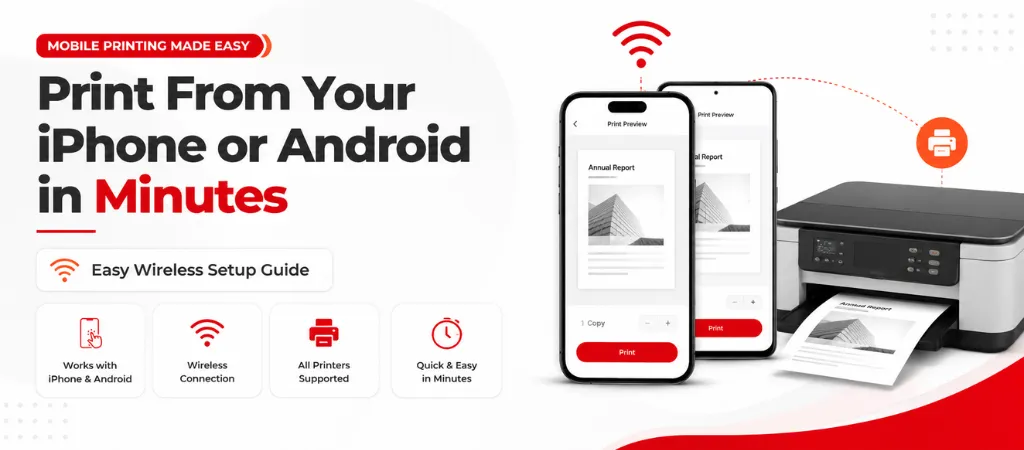
So you want to know how to print from your phone. Well if you have an iPhone it is really easy. IPhones can print using something called AirPrint. This is a feature that’s already on your iPhone so you do not need to get any other apps or special drivers. As long as your printer is compatible with AirPrint and it is on the internet network as your iPhone you are all set.
If you have an Android phone it is a bit different. Most Android phones already have something called Mopria Print Service on them. You can use this to print to printers. You can get an app from the company that made your printer like HP Smart or Canon PRINT or Epson iPrint. The important thing to remember is that your phone and printer need to be on the internet network.
Printing from a phone should be easy. It is not always that way. The reason is that different printers use ways to connect to phones without using cables. This means that the steps to set up printing are different depending on the type of phone you have, like an iPhone or an Android phone and the kind of printer you are using.
This guide will show you how to print from your iPhone or Android phone to any big printer brand in 2026. We will talk about AirPrint, Mopria and special apps that are made by the printer companies. We will also help you figure out what to do when your printer does not show up on your phone.
How to Print From iPhone: AirPrint Setup
AirPrint is what Apple uses for printing. It comes with every iPhone as long as you have iOS 4.2 or something newer. If your printer works with AirPrint, which a lot of HP, Canon, Epson and Brother printers do the ones made after 2012 then you can print from your iPhone really easily. You do not need to get any app or anything. You do not need to get a driver. All you have to do is connect your printer to WiFi. You are good to go with AirPrint.
You need to connect your printer to the WiFi network that your iPhone is using. The main thing is that the printer and the iPhone have to be on the network.
Open the thing you want to print like a document or a photo or maybe an email or a webpage or a PDF file.
Tap the Share icon it is the box with an arrow pointing up then scroll down and tap the Print option.
Tap Select Printer and your AirPrint-compatible printer should show up automatically.
Choose how you want to print, like how many copies or which pages and what size paper you want to use and then tap the Print button.
If your printer does not appear under Select Printer it is usually because the printer and the iPhone are not on the WiFi network, which can happen if you have a dual-band router and your iPhone is using the 5GHz network and your printer is using the 2.4GHz network or maybe the printer is asleep. So wake up the printer. Try to print again with your iPhone and the printer, on the same WiFi network.
How to Print From Android: Mopria and Brand Apps
So, you have an Android phone. You want to print something. The Android phone uses the Mopria Print Service standard, which’s pretty much like AirPrint. Most Android phones, like the Samsung, Google Pixel and OnePlus already have Mopria installed or you can get it for free from the Play Store.
Here is what you need to do:
You need to download the Mopria Print Service from the Google Play Store if it’s not already on your Android phone.
Then you go to Settings then Connected devices or Connections Printing and then Mopria Print Service and you enable it on your Android phone.
Next you open the thing you want to print then you tap the three-dot menu and tap Print on your Android phone.
After that you select your printer from the list. Your printer has to be on the WiFi network as your Android phone.
Finally you choose your settings. Tap the print button, which is usually a printer icon in the top right corner on your Android phone.
If the Mopria Print Service on your Android phone does not find your printer you can use an app. For example if you have an HP printer you can use the HP Smart app. If you have a Canon printer you can use the Canon PRINT Inkjet/SELPHY app. If you have an Epson printer you can use the Epson iPrint app.. If you have a Brother printer you can use the Brother iPrint&Scan app. These apps are all free. They connect directly to the printer over WiFi. They also have more features than the Mopria Print Service, on your Android phone.
Which Printers Support AirPrint and Mopria?
Table content here
What to Do When Your Phone Can't Find the Printer
Check that both devices are on the WiFi network. On a dual-band router your phone might be on 5GHz. The printer is 2.4GHz. Try connecting your phone to the 2.4GHz network, for a test.
Wake up the printer. Many printers go into deep sleep mode after 30 minutes. They won’t respond to AirPrint or Mopria discovery until you press a button to wake them up.
Try restarting both the phone and the printer. A simple restart usually fixes discovery problems.
Make sure the printer has a working WiFi connection. Print a network configuration page. You can usually do this by holding the WiFi button for 3 seconds. Check that it shows an IP address and the correct network name.
Update the printers firmware. Firmware updates often make discovery and AirPrint/Mopria compatibility better.
How to Print to an Older Printer That Doesn't Support AirPrint
If your printer does not support AirPrint or Mopria which’s usually the case with printers made before 2012 then you have two choices.
You can install an app on your device. For example if you use a Mac you can use an app called Printopia. If you use an iOS device you can use Printer Pro. These apps help share any printer that is connected to your computer or network with your iOS device.
The other option is to connect your printer to a Windows or Mac computer that’s on the same network as your iOS device. Then you need to turn on printer sharing. To do this on a Windows computer you go to the Windows Settings. On a Mac you go to the System Settings. This way your iOS device can use the printer.
You need to download the app for your printer brand. This could be HP Smart or Canon PRINT or Epson iPrint or Brother iPrint&Scan. These apps work with WiFi. You do not need to use AirPrint. If you have a printer, you can use an app, like Printer Pro. This app helps printers that do not have wireless printing.
The common reason is that your phone and printer are not connected to the same WiFi network. The printer might be in sleep mode. You need to wake up the printer. Also make sure both your phone and printer are on the network. This is especially important if you have a dual-band router. Then try again with your phone and printer.
This does not work directly. You need to have a computer on the network, as your phone and a USB-connected printer. The printer must be connected to this computer with a USB cable. The computer has to be turned on. The printer must be shared from this computer either using Windows or macOS. Then your phone can find the printer.
No. AirPrint handles everything on its own. It does not need a driver, app, or setup. The only thing needed is for the printer to support AirPrint. Also the printer and your iPhone must be, on the WiFi network.
Diagnosis and configuration fixes cost between $40 and $80. Replacing rollers on-site costs, between $75 and $200. This depends on the model. How many rollers need to be serviced.
Conclusion
Printers naturally make some noise during startup, paper feeding, and printing, so not every sound indicates a problem. However, unusual noises such as grinding, clicking, squeaking, loud humming, or banging often point to issues like paper jams, worn rollers, carriage obstructions, or fuser problems. Identifying the type of noise early and taking the appropriate action can prevent costly repairs and extend your printer’s lifespan. Regular cleaning, routine maintenance, and replacing worn components when needed will keep your printer operating smoothly and quietly.