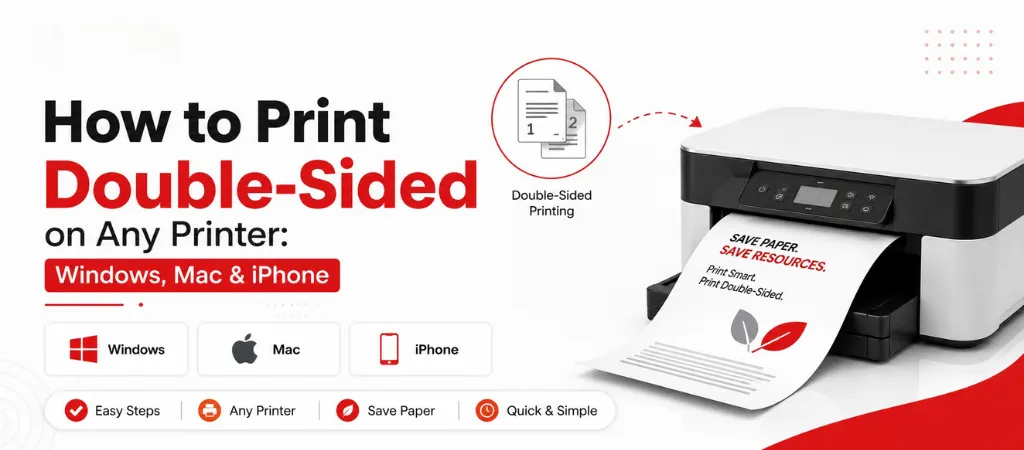
To print double-sided on Windows, go to File → Print → Printer Properties → look for a ‘Print on Both Sides’ or ‘Duplex Printing’ option. On Mac: File → Print → scroll down to the layout panel → Two-Sided. On iPhone via AirPrint, the double-sided option appears in the print options panel if your printer supports automatic duplex. If no automatic duplex option exists, you can print odd pages, flip the stack, and print even pages manually.
Printing on both sides—or duplex printing—cuts paper usage in half and significantly reduces printing costs for those who print more than just a few pages daily. It also makes documents easier to read, bind, and carry.
How to print on both sides depends on whether your printer has automatic duplexing (a built-in mechanism that automatically flips the paper) or manual duplexing (where you flip the paper yourself). This guide explains both methods for Windows, Mac, and iPhone.
Does Your Printer Support Automatic Duplex?
Before trying the settings below, check whether your printer supports automatic duplexing. Look for ‘automatic duplex printing’ or ‘auto 2-sided printing’ in the printer specifications, or check for a slot at the back of the printer where the paper is fed back in after the first side is printed.
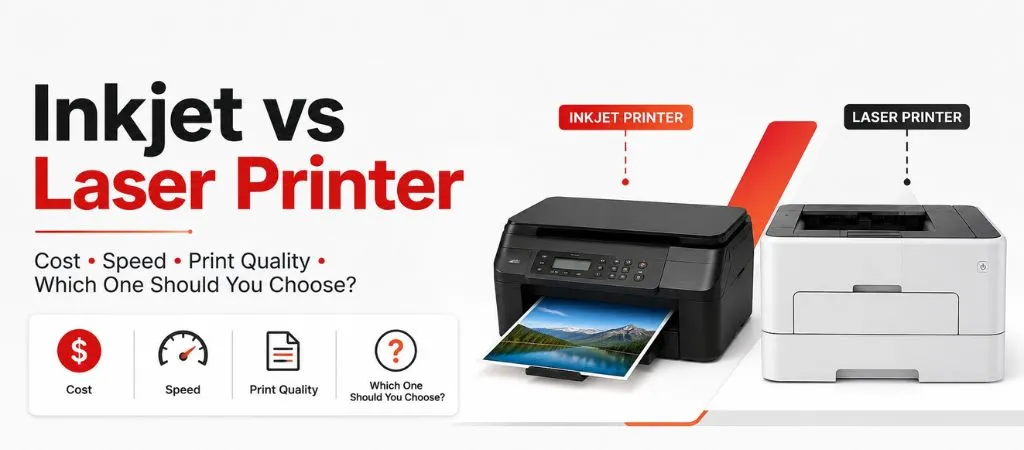
Most new HP LaserJet, Canon imageCLASS, Brother HL/MFC, and Epson WorkForce Pro models support automatic duplexing. Many home inkjet models (HP DeskJet, basic Canon PIXMA models, Epson Expression) do not—on these, the paper must be flipped manually.
If your printer’s specifications list ‘manual duplex,’ the printer software will print one side and then prompt you to flip the paper over and reload it. Both methods are described below.
How to Print Double-Sided on Windows 10 and 11
Click Printer Properties or Preferences (the link under the printer name in the print dialog).
Look for a tab labeled Finishing, Layout, or Document (varies by brand).
Find the option “Print on Both Sides” or “Duplex Printing.” Select ‘Flip on Long Edge’ for standard portrait documents, or ‘Flip on Short Edge’ for landscape documents.
Click OK and then Print.
In Microsoft Word specifically, there’s also a shortcut: go to File → Print, and in the settings section look for ‘Print One Sided’—click it and change to ‘Print on Both Sides (Flip pages on long edge).’Word makes this more visible than many other applications.
How to Set Double-Sided Printing as the Default on Windows
If you always want double-sided printing without selecting it each time: Go to Settings → Bluetooth & devices → Printers & scanners → select your printer → Printing preferences → Finishing tab → set ‘Print on Both Sides’ to your preferred setting → OK. This applies to all applications.
How to Print Double-Sided on Mac
Open your document and go to File → Print (or ⌘P).
Click the ‘Show Details’ button at the bottom of the print dialog if the full options aren’t visible.
Click the dropdown that usually shows ‘Media & Quality’ or ‘Layout’ and select Layout.
Find the Two-Sided option and choose ‘Long-Edge binding’ for portrait documents.
Click Print.
In Microsoft Word for Mac, the double-sided option is also directly in the Print dialog under Copies & Pages — look for the ‘Two-Sided’ checkbox.
How to Print Double-Sided From iPhone (AirPrint)
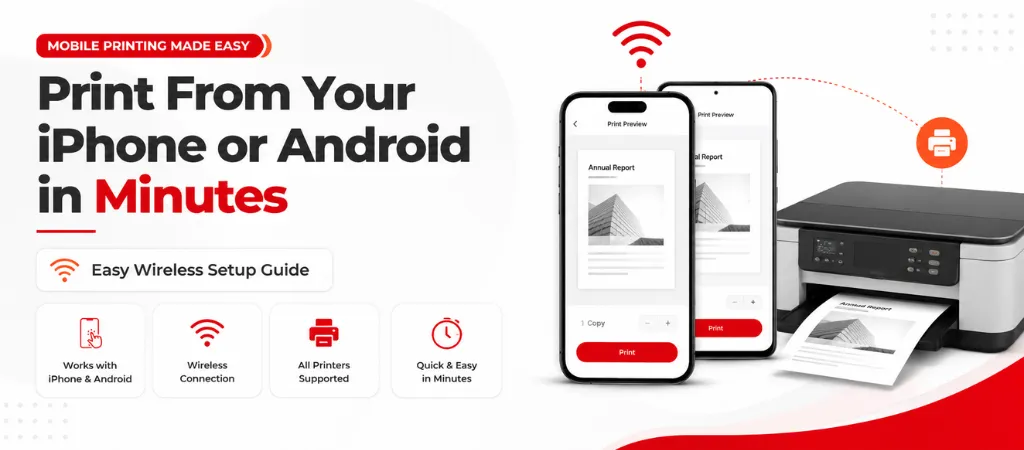
AirPrint exposes the duplex option when the printer supports it. To print double-sided from iPhone:
Open the document or image you want to print and tap the Share button.
Tap Print.
Tap your printer name in the Printer field.
If your printer supports automatic duplex, a Double-Sided toggle appears below the page range. Toggle it on.
Tap Print.
If no double-sided option appears, the printer doesn’t support automatic duplex via AirPrint on your model. In this case, print from a computer using the manual duplex method below.
How to Print Double-Sided Manually (For Printers Without Auto-Duplex)
Manual duplex works on any printer and is more straightforward than it sounds once you do it once:
In the print dialog, choose to print ‘Odd pages only’ (some drivers call it ‘pages 1, 3, 5…’)—this prints the front side of every sheet.
When complete, take the printed stack and reload it face-down in the paper tray (the exact orientation depends on your printer model — do a test with one page first to confirm which way to load).
Go back to the print dialog and choose ‘Even pages only’ (pages 2, 4, 6…) and print again.
When testing which orientation to reload, print page 1 of a test document, note which side and which end is face down when loaded, then print page 2 and check the result. One test page tells you exactly how to reload for your specific printer.
Reducing Printing Costs With Duplex Printing
Duplex printing is one of the easiest ways to reduce printing costs—it instantly cuts paper consumption in half, which can lead to significant monthly savings for a busy office. When combined with a ‘Managed Print Services’ contract—which standardizes the toner purchasing process and monitors printer usage—most businesses see a 20–30% reduction in total printing costs compared to operations without managed printing. For full details, please refer to our ‘Managed Print Services’ guide.
Not all printers come with automatic duplex hardware. Home inkjet printers typically print on only one side. Check your printer’s specifications for ‘duplex’ or ‘two-sided printing’ support. If it does not support automatic duplexing, use the manual duplex method (print the odd-numbered pages first, then flip the paper to print the even-numbered pages).
Print page 1 of a test document on a blank sheet. Take note of which side is printed and how the page is oriented (portrait or landscape). Load it back into the tray face-down with the printed side facing down. Print page 2. Check the result — if it prints on the back correctly, that’s your loading orientation going forward.
Yes. In Google Docs, go to File → Print → More Settings → Two-Sided. This option appears only if your printer supports automatic duplex and is connected as a network or USB printer on your computer.
There is a slight difference, because the printer pulls each sheet in twice. With laser printers featuring automatic duplexing, the drop in speed is minimal (just a few seconds per sheet). In inkjet printers, automatic duplexing involves waiting for the first side to dry partially before flipping the page, which can add a few seconds to the processing time for each page.
On Windows: go to Settings → Printers & Scanners → select your printer → Printing preferences → set the duplex option. On Mac: print any document, set duplex in the print dialog, then save the settings as a preset (click the Presets dropdown → Save Current Settings as Preset). Name it ‘Two-Sided Default’ and select it each time.
Need Professional Printer Help?
Whether you need printer setup, wireless configuration, print quality troubleshooting, or expert repair, the OvronInc team is here to help homes and businesses across the United States.