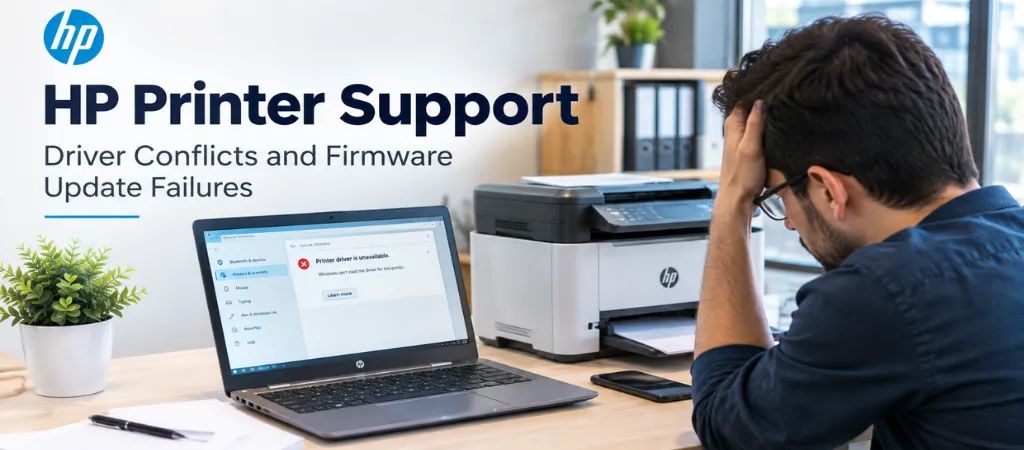
HP usually drives driver and firmware updates more than other printer brands, which means more opportunities for an update to break something that was working fine. The following is how to tell if a recent update broke something, and how to revert that update – a common starting point for HP printer troubleshooting.
If it broke right after an update, the update is the first suspect.
HP has one of the more active driver and firmware release schedules in the printer industry. From a security and quality perspective, this is a good thing, as issues should be addressed quickly. The updates often happen automatically, or at the least, with very little input required. Because of this, people often miss that an update is the cause of a “sudden” printing issue. Often, an update introduces a new issue rather than resolves an old one – a frequent trigger for an HP printer not working after update.
How to tell if an update actually caused the problem
Compare the date the problem started to the date when a driver or firmware update was installed for the printer or computer. A driver or firmware update installed within a day or two of the misbehavior is a strong indication, even if the release notes don’t describe the issue. Usually, defects don’t get documented before the release.
Open Device Manager and locate the printer – Under “Print queues” or “Printers,” right-click the affected HP device and select Properties.
Go to the Driver tab and check for a “Roll Back Driver” option – If available, this reverts to the previously installed driver version in a few clicks — the fastest fix when a recent update is the cause.
If rollback isn’t available, uninstall and reinstall the previous version manually – Download the prior driver version directly from HP’s official support site — never from third-party download sites.
Test printing before re-enabling automatic updates – Confirm the issue is actually resolved before letting the system pull updates again, to avoid immediately reintroducing the same problem.
Don’t downgrade firmware without checking HP’s official guidance first
Unlike drivers, firmware rollbacks are riskier and not always supported by HP for every model — some units block downgrading to older firmware for security reasons. Check HP’s official documentation for your specific model before attempting a firmware rollback, rather than assuming it works the same way as a driver rollback.
Common failure points during firmware updates
Issue
What to check
Update fails partway through
Confirm stable power and network connection before retrying — an interrupted update can leave firmware in a partial state
Printer becomes unresponsive after update
Try a full power cycle (unplug, wait 30 seconds, reconnect) before assuming the update bricked the device
Network settings reset after update
Some firmware updates reset network configuration — reassign a static IP if the printer previously had one
These are among the most common causes behind an HP printer stuck after update or an HP printer error after firmware update.
Should you disable automatic updates?
For printers that are business critical, you can disable fully automatic updates and switch to scheduled, manually approved updates. You can then check the release notes and choose to approve the update at a time where printer usage is low, therefore reducing the chance that an unexpected change occurs during the workday. This change gives you more control over when changes occur to a device that the business depends on – a practical piece of business printer driver management.
Not recommended — skipping updates indefinitely means missing security patches and genuine bug fixes. A better approach is scheduled, reviewed updates rather than skipping them altogether.
Drivers live on the computer and can typically be swapped freely. Firmware lives on the printer itself, and some manufacturers restrict downgrading for security reasons — once updated, older firmware may not be officially supported for reinstallation.
Business-line models often have more granular update controls (IT-managed deployment, scheduled updates) that consumer models lack, which can reduce — though not eliminate — this kind of surprise.
Conclusion and Next Steps
HP’s active updates have increased the number of security updates. While this is generally good, this means that updates must be taken into consideration whenever a printer issue appears “out of nowhere.” A driver rollback will usually resolve this without needing a service call.