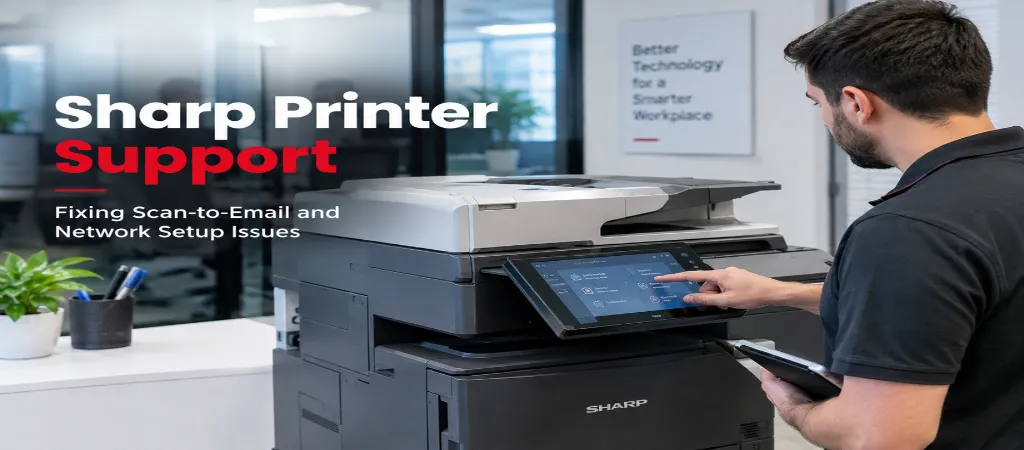
Sharp’s MFPs are common in schools and offices. Their support team receives lots of requests because users have trouble setting MFPs to scan to email or connecting them to the company’s network. This guide will help with printer setup, including how to set up or configure a Sharp MFP, and will also help if the MFP is no longer functioning.
Quick Answer
Yes, Scan-to-email failures are most often caused by incorrect or outdated SMTP authentication settings, especially after an email password change or a security policy update like enabling multi-factor authentication. Network setup issues typically stem from IP address conflicts, incorrect wireless credentials, or the device being on a different network segment (VLAN) than the workstations trying to reach it.
Setting Up Scan-to-Email
Many users have problems configuring their MFP to scan to email. To resolve this, you first need to access the MFP’s web configuration page. Next, find the settings to allow MFP to act as a network scanner or to send email. To do this you will need to configure the email service provider’s (EPS) SMTP settings. The SMTP settings vary by service provider, and the default settings may not work. Once the settings are configured, the MFP is ready to send a scan. To test the configuration, scan an email to yourself a core step in Sharp printer scan to email setup.
As you work on configuring the MFP, remember that the support team may also be able to assist you. Most Sharp MFPs have a support button, and if you press it the MFP may also be able to provide support.
Troubleshooting Scan-to-Email After It Stops Working
We’ve found the cause for why scan-to-email stops working is almost never related to the printer. It is generally related to the email account. Some of the reasons may include: the email account’s security policy has been updated and changed, the account has turned on multi-factor authentication, or the account’s password has been changed and the printer was not updated with the new credentials. Most email accounts will not allow the printer to use the normal email account password to send emails. The email account will require the printer to use an application password or an SMTP (Simple Mail Transfer Protocol) account. This is one of the most common issues covered under general Sharp MFP troubleshooting.
Wired vs. Wireless Setup
From a reliability standpoint for business impact printers, a wired connection is almost always easier and more reliable. This is due to the uncertainty of the wireless signal. If you are having issues with a wireless connection, the first thing you should check is if the device has a strong enough signal. Often, the best place to put a printer is the worst place for signal coverage a key factor in reliable Sharp printer wireless configuration.
Troubleshooting
Printer not on network: This may be due to a misconfiguration with the firewall. Also, make sure the printer and computer are on the same network.
Recurring loss of network connection: This is usually due to the printer’s IP address being set to DHCP and the address leasing time expiring. You can give the printer a static IP address to ensure this does not happen again — an important part of proper Sharp printer network setup.
Printer Visible on the Network, But Jobs Not Printing: It is often the case that the print queues on the workstations are not configured correctly to the model of printer being printed to on the network. Resolving the print driver conflict typically resolves this issue, which often comes down to a clean printer driver installation.
The Sharp drivers and firmware are periodically updated to resolve bugs and provide other updates to the printers. The email providers are continually updating their security policies to provide increased security to their email services. Due to these security policy changes, it may be necessary to update the driver or firmware on the Sharp printer to maintain communication with the email provider — updates that can also resolve certain Sharp printer error codes.
How Ovron Inc. Supports Sharp Printer Configurations
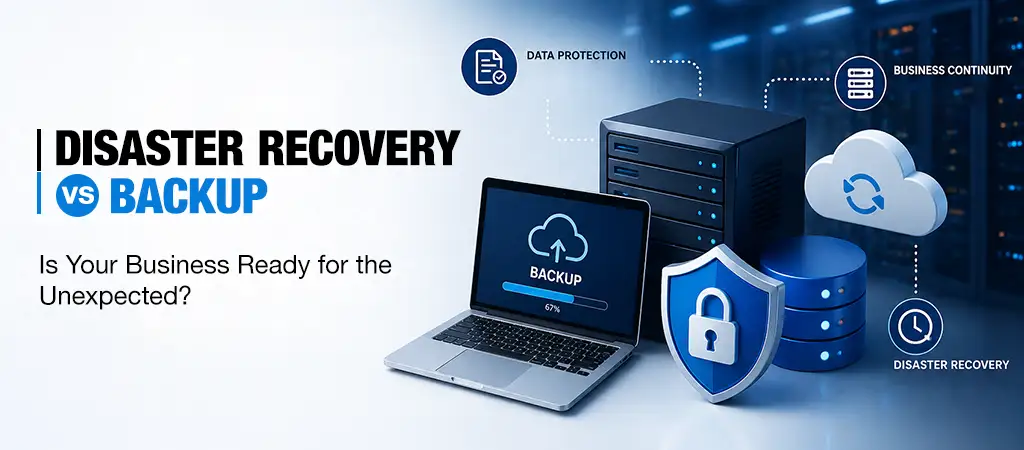
Just having a backup system in place provides little assurance that the backups will be of any use in a recovery situation. Only by regularly testing the restoration of backups through consistent backup testing can an organization be certain that the backups will be of use in a recovery situation. It is reasonable to be concerned that a recovery situation may occur in the future and that the backups will be of no use. Most organizations are operating under this assumption.
How Ovron Inc. Approaches Backup and Disaster Recovery
The Sharp printer is one of the many printer models supported by Ovron Inc to provide business printer setup and wireless printer configuration. Ovron Inc. supports the customer with configuration and integration of printer features, like scan-to-email, to eliminate the need for the customer to perform multiple configuration attempts, which is commonly required by customers without experience integrating printers to a network. This is part of our broader copier support and printer maintenance contract offerings.
Authentication settings on the email server may have been updated. These settings may need to be updated on the Sharp printer in order to communicate with the email server.
This is usually because the computer and printer are on different network segments, or a firewall is blocking device discovery. Confirming both devices are on the same network is the first troubleshooting step.
Setting up a printer and a computer often fails because both devices are connected to different parts of the network. This is especially true if you have a firewall turned on. The first thing you should do is make sure your printer and computer are on the same network.
For security reasons, email providers don’t recommend using your standard email account settings and passwords for email apps like printers. They suggest using app-specific or SMTP server passwords.
Summary and Next Steps
We generally suggest contacting Sharp for support directly. Troubleshooting email settings for printers is generally the area most likely to require service. But the process for configuring settings for scanning emails is generally well understood. For other issues, support generally is recommended.