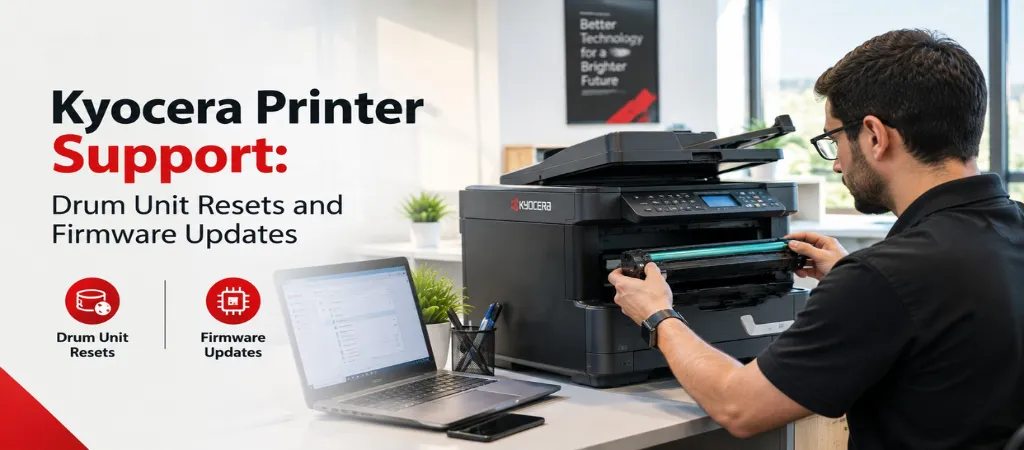
Kyocera’s long-life drum technology means most drum warnings don’t actually mean the drum needs replacing — they need a reset. Here’s how to tell the difference, plus how to handle firmware updates safely without bricking a working printer.
Kyocera printers are built around a distinct design philosophy: long-life ceramic drum units rated for hundreds of thousands of pages, rather than the shorter-life drums common in many competing brands. This is a genuine advantage — but it also means the drum warning behaves differently than people expect coming from other printer brands, which causes some unnecessary replacements.
Why the drum warning appears — and what it actually means
Kyocera’s drum warning is often triggered by a maintenance counter reaching a threshold, not by the drum’s actual remaining capacity. Before assuming the drum needs replacing, check the remaining drum life percentage in the printer’s maintenance menu — it’s common to see a warning appear with a meaningful percentage of drum life still remaining.
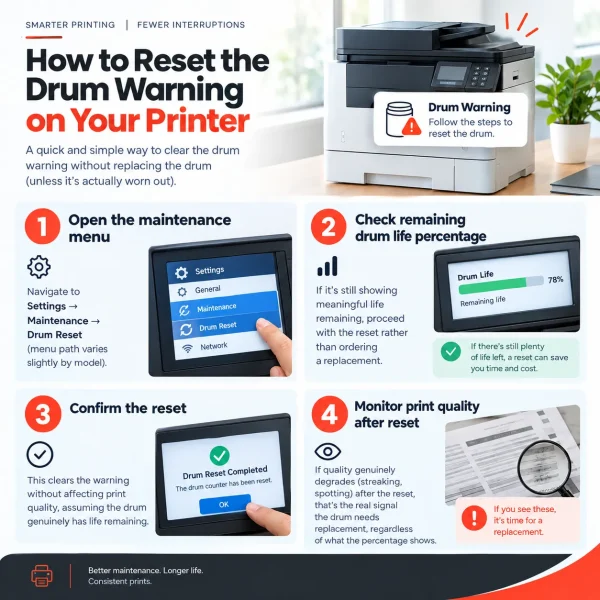
Step-by-step: resetting the drum warning
Open the maintenance menu: Navigate to Settings → Maintenance → Drum Reset (menu path varies slightly by model).
Check remaining drum life percentage: If it’s still showing meaningful life remaining, proceed with the reset rather than ordering a replacement.
Confirm the reset:This clears the warning without affecting print quality, assuming the drum genuinely has life remaining.
Monitor print quality after reset: If quality genuinely degrades (streaking, spotting) after the reset, that’s the real signal the drum needs replacement, regardless of what the percentage shows.
Firmware updates: what to know before updating
Consideration
What to do
Before updating
Confirm the printer has stable power — a power interruption mid-update can corrupt the firmware
Timing
Update during low-usage hours, not mid-workday, in case the process takes longer than expected
Source
Only download firmware directly from Kyocera’s official site — third-party firmware sources are a genuine security risk
After updating
Print a test page and verify network connectivity, since some updates reset network configuration
When to call for service instead
Print quality degrades noticeably after a drum reset.
A firmware update fails partway through or the printer won’t power on afterward.
The drum warning reappears within a short period after resetting.
There’s no fixed number — the remaining life percentage in the menu is the better signal than counting resets. Once that percentage is genuinely low or print quality visibly degrades, it’s time to replace rather than reset again.
Occasionally, if the issue is software-related (like a calibration bug), but most print quality issues are hardware-related (toner, drum condition) and won’t be affected by a firmware update.
This varies by model and isn’t on a fixed schedule — it’s worth checking periodically rather than assuming updates happen automatically, since many Kyocera models require manual firmware installation.
Conclusion
Kyocera’s long-life drum design is a genuine advantage once you know how to read the warnings correctly — the businesses that get the most value from these printers are the ones checking the actual remaining percentage instead of replacing a drum the moment a warning light appears.