
How to Print From Your iPhone or Android (2026 Guide) So you want to know how to print from your phone. Well if you have an iPhone it is really easy. IPhones can print using something called AirPrint. This is a feature that’s already on your iPhone so you do not need to get any other apps or special drivers. As long as your printer is compatible with AirPrint and it is on the internet network as your iPhone you are all set.
If you have an Android phone it is a bit different. Most Android phones already have something called Mopria Print Service on them. You can use this to print to printers.. You can get an app from the company that made your printer like HP Smart or Canon PRINT or Epson iPrint. The important thing to remember is that your phone and printer need to be on the internet network.
Printing from a phone should be easy. It is not always that way. The reason is that different printers use ways to connect to phones without using cables. This means that the steps to set up printing are different depending on the type of phone you have, like an iPhone or an Android phone and the kind of printer you are using.
This guide will show you how to print from your iPhone or Android phone to any big printer brand in 2026. We will talk about AirPrint, Mopria and special apps that are made by the printer companies. We will also help you figure out what to do when your printer does not show up on your phone.
How to Print From Your iPhone: AirPrint Setup
How to Print From Your iPhone AirPrint is what Apple uses for printing. It comes with every iPhone as long as you have iOS 4.2 or something newer. If your printer works with AirPrint, which a lot of HP, Canon, Epson and Brother printers do the ones made after 2012 then you can print from your iPhone really easily. You do not need to get any app or anything. You do not need to get a driver. All you have to do is connect your printer to WiFi. You are good to go with AirPrint.
1. Connect your printer to the same WiFi network your iPhone is on. This is the only requirement — the printer and phone must be on the same network.
2. Open whatever you want to print — a document, photo, email, webpage, or PDF.
3. Tap the Share icon (the box with an arrow pointing up), then scroll down and tap Print.
4. Tap Select Printer. Your AirPrint-compatible printer should appear automatically.
5. Choose your print settings (copies, page range, paper size) and tap Print.If the printer doesn’t appear under Select Printer, it’s almost always because the printer and the iPhone are on different WiFi networks (common with dual-band routers where the phone is on 5GHz and the printer is on 2.4GHz — see our WiFi connection guide), or the printer is in sleep mode. Wake the printer and try again
How to Print From Android: Mopria and Brand Apps
So you have an Android phone. You want to print something. The Android phone uses the Mopria Print Service standard, which’s pretty much like AirPrint. Most Android phones, like the Samsung, Google Pixel and OnePlus already have Mopria installed or you can get it for free from the Play Store.
Here is what you need to do:
1. Download Mopria Print Service from the Google Play Store if it’s not already on your phone.
2. Go to Settings → Connected devices (or Connections) → Printing → Mopria Print Service, and enable it.
3. Open what you want to print, then tap the three-dot menu and tap Print.
4. Select your printer from the list. Your printer must be on the same WiFi network as your Android phone.
5. Choose your settings and tap the print button (a printer icon, usually in the top right).
If Mopria doesn’t find your printer, use the brand-specific app as an alternative: HP Smart (for HP), Canon PRINT Inkjet/SELPHY (for Canon), Epson iPrint (for Epson), or Brother iPrint&Scan (for Brother). These apps are free, connect directly to the printer over WiFi, and offer more features than Mopria.
Which Printers Support AirPrint and Mopria?
Xerox Print Service Plugin
| Brand | iPhone (AirPrint) | Android (Mopria) | Brand App Available |
|---|---|---|---|
| Hp | Yes — most models since 2012 | Yes | HP Smart (iOS + Android) |
| Canon | Yes — most PIXMA and imageCLASS | Yes | Canon PRINT Inkjet/SELPHY |
| Epson | Yes — most models since 2013 | Yes | Epson iPrint |
| Brother | Yes — most MFC and HL models | Yes | Brother iPrint&Scan |
Xerox | Selected models | Yes | Xerox Print Service Plugin |
| Older printers (pre-2012) | No native AirPrint | No native Mopria | Use Printopia or a shared PC |
What to Do When Your Phone Can't Find the Printer
AirPrint setup ⦁ Check that both devices are on the WiFi network. On a dual-band router your phone might be on 5GHz. The printer is 2.4GHz. Try connecting your phone to the 2.4GHz network, for a test.
⦁ Wake up the printer. Many printers go into deep sleep mode after 30 minutes. They won’t respond to AirPrint or Mopria discovery until you press a button to wake them up. wirelessly print from phone
⦁ Try restarting both the phone and the printer. A simple restart usually fixes discovery problems.
⦁ Make sure the printer has a working WiFi connection. Print a network configuration page. You can usually do this by holding the WiFi button for 3 seconds. Check that it shows an IP address and the correct network name.
⦁ Update the printers firmware. Firmware updates often make discovery and AirPrint/Mopria compatibility bette
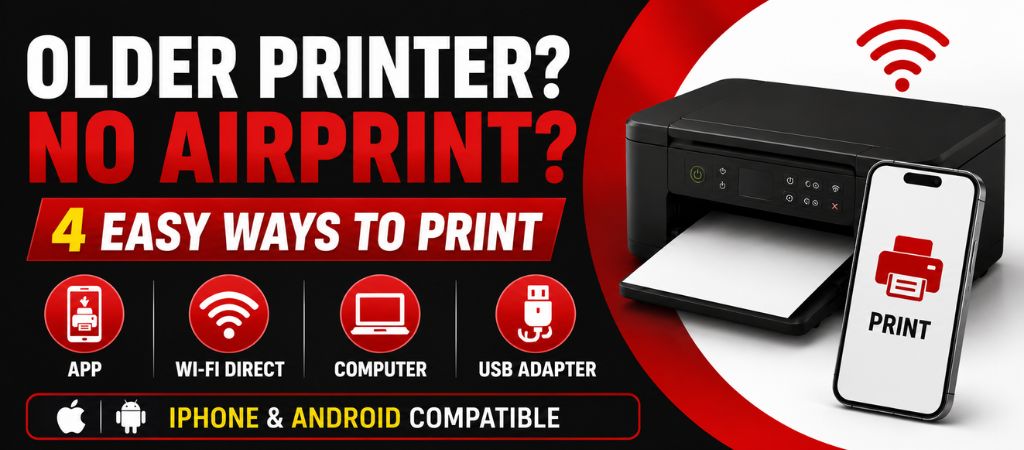
How to Print to an Older Printer That Doesn't Support AirPrint
If your printer does not support AirPrint or Mopria which’s usually the case with printers made before 2012 then you have two choices.
You can install an app on your device. For example if you use a Mac you can use an app called Printopia. If you use an iOS device you can use Printer Pro. These apps help share any printer that is connected to your computer or network with your iOS device.
The other option is to connect your printer to a Windows or Mac computer that’s on the same network as your iOS device. Then you need to turn on printer sharing. To do this on a Windows computer you go to the Windows Settings. On a Mac you go to the System Settings. This way your iOS device can use the printer.
Frequently Asked Questions
Printing from your phone is genuinely straightforward once you know which standard your printer and phone use. iPhone + AirPrint-compatible printer = no setup needed, just same WiFi network. Android + any modern printer = Mopria or brand app. If the printer doesn’t show up, 90% of the time it’s a network mismatch or sleep mode. Ovron helps businesses set up wireless printing across any device and printer combination — contact us at +1-833-837-4005 or ovroninc.com/printer-setup-and-configuration.
Download the printer brand’s app — HP Smart, Canon PRINT, Epson iPrint, or Brother iPrint&Scan — which work over WiFi without requiring AirPrint. Alternatively, apps like Printer Pro support older printers that don’t have native wireless printing
The most common cause is the phone and printer being on different WiFi networks, or the printer being in sleep mode. Wake the printer, confirm both devices are on the same network (important on dual-band routers), and try again.
Not directly. A USB-connected printer must be shared through a computer on the same network. The computer must be on and the printer must be shared in Windows or macOS for your phone to find it
No. AirPrint handles everything natively — no driver, no app, no configuration. The only requirement is that the printer supports AirPrint and is connected to the same WiFi network as your iPhone.
Install the HP Smart app (free, Android) or enable Mopria Print Service in your phone’s settings. Both find HP printers on your WiFi network automatically. HP Smart also lets you scan from the phone and manage ink levels.
Conclusion
A printer printing blank pages is usually caused by a cartridge, print head, driver, or settings issue rather than a serious hardware failure. By checking the eight common causes covered in this guide, you can quickly identify the problem and restore normal printing without unnecessary repairs.
Table of Contents


