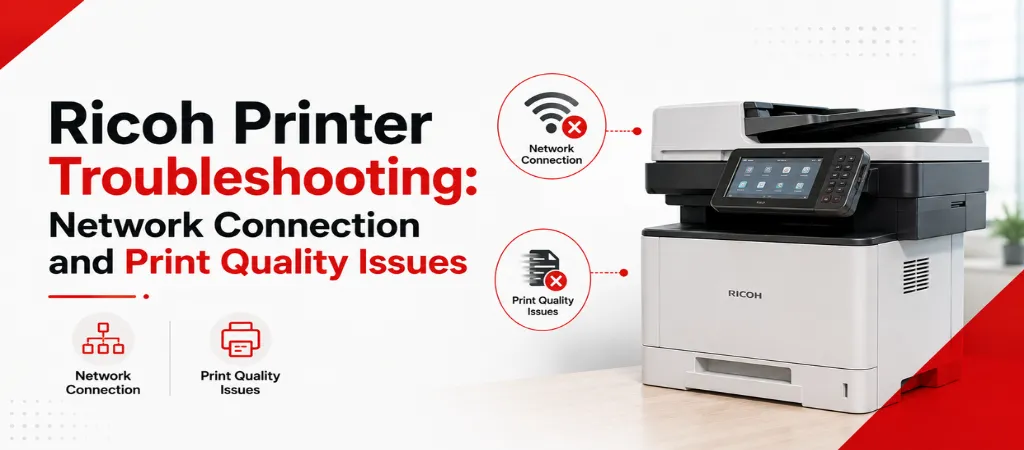
Ricoh’s MP and IM series multifunction printers are common in corporate offices, schools, and accounting firms because of their durability and print volume capacity — but they’re also frequently reported causes of two specific headaches: intermittent network drops and declining print quality. This guide walks through both issues methodically, with fixes that resolve the majority of everyday Ricoh printer problems without a service call.
If your Ricoh printer is failing to connect or dropping off the network, the most common causes are a changed or conflicting IP address, a DHCP lease expiration, or a Wi-Fi signal issue on wireless models. If print quality has declined (streaks, faded text, spotting), the most common causes are toner distribution, drum wear, or a dirty scanner glass affecting copies specifically. Each is addressed in detail below.
Why Ricoh Printers Drop Off the Network
Ricoh multifunction devices are frequently deployed on business networks with static IP configurations for predictable print-driver behavior across many workstations. When that static IP is inadvertently reassigned by a router, or a DHCP reservation expires without renewal, the printer effectively “disappears” from every workstation that has it mapped by IP address — even though the printer itself is powered on and functioning normally.
Step-by-Step: Fixing Ricoh Network Connection Issues
- Print the printer’s network configuration page from the control panel to confirm its current IP address, subnet, and gateway.
- Compare that IP to what’s configured on affected workstations. If it has changed, this is very likely your root cause.
- Check your router/DHCP server to confirm whether the printer has a reserved (static) lease, or if it’s pulling a dynamic IP that can change on reboot.
- Re-add the printer using the correct current IP on affected workstations, or better, configure a permanent DHCP reservation so this doesn’t recur.
- For wireless-connected Ricoh models, check signal strength from the printer’s location — multifunction devices are often placed in supply rooms or corners with weaker Wi-Fi coverage than the rest of the office.
- Restart the printer’s network interface (not just the printer) from the admin menu if the device supports it separately from a full power cycle.
Recurring network drops after these steps usually point to a broader network infrastructure issue (router instability, VLAN misconfiguration) rather than a printer-specific fault, and are worth having a managed IT or printer support technician review together.
Common Ricoh Print Quality Problems and Fixes
Vertical white or colored streaks: Typically caused by a worn or scratched drum unit, or toner unevenly distributed in a low cartridge. Gently redistribute the toner cartridge and print a test page; persistent streaking after that points to drum replacement.
Faded or inconsistent print density: Usually a toner level issue, but can also result from print density settings being adjusted (sometimes accidentally) in the driver or admin menu — worth checking before assuming a hardware fault.
Spotting or repeating marks at regular intervals: A classic sign of a damaged drum unit — the repeating distance between marks typically matches the drum’s circumference, which is a useful diagnostic clue for a technician even before a truck rolls.
Ghosting (faint duplicate image offset from the main print): Often related to fuser temperature issues or drum wear on higher-volume devices nearing their rated page life.
Scan-to-Email and Scan-to-Folder Failures
When copies print fine but scanning fails, the cause is almost always separate from the print engine itself:
- Scan-to-email failures are frequently caused by SMTP authentication settings that need updating after an email password change or a security policy update (particularly common after a Microsoft 365 or Google Workspace tenant security change).
- Scan-to-folder failures usually stem from a changed folder path, permissions issue, or a computer that was renamed or replaced without updating the printer’s saved destination.
- Scanned image quality issues (streaks or lines only on scans, not prints) point to a dirty scanner glass or automatic document feeder (ADF) roller, not a print engine problem.
Firmware and Driver Issues
Outdated firmware is a frequently overlooked cause of both connectivity glitches and inconsistent behavior across a fleet of printers. Ricoh periodically releases firmware updates addressing known network stability bugs; checking the current firmware version against Ricoh’s published release notes is worth doing before extensive troubleshooting on a device with intermittent, hard-to-reproduce issues.
When to Escalate to a Printer Support Provider
| Situation | Try Yourself First | Call a Technician |
|---|---|---|
| Printer has a new/wrong IP address | ✅ | |
| Toner redistribution for minor streaking | ✅ | |
| Persistent drum-pattern spotting | ✅ | |
| Fleet-wide, recurring network drops | ✅ | |
| Scan-to-email failing after password changes | ✅ (update SMTP settings) | If unresolved: ✅ |
| Firmware update needed across multiple devices | ✅ |
Preventive Maintenance for Ricoh Fleets
Ricoh MP-series and copier/printer combo units are built for high-volume use, but a short recurring maintenance routine prevents most of the network and print-quality issues covered above:
- Weekly: Confirm the printer’s IP address hasn’t drifted from a DHCP lease change, especially in offices without static IP reservations configured for printers.
- Monthly: Clean the scanner glass and document feeder rollers — a surprisingly common cause of “poor scan quality” tickets that has nothing to do with the printer’s imaging unit.
- Quarterly: Review firmware version against Ricoh’s current release for that model, since firmware updates frequently resolve network stability issues before they’re reported as recurring drops.
Businesses with multiple Ricoh units across departments benefit most from centralizing this schedule under a single fleet management plan, rather than handling it ad hoc per device, which is where most recurring issues start.
How Ovron Inc Supports Ricoh Fleets
Ovron Inc’s printer repair services provide direct troubleshooting, network reconfiguration, and print quality diagnostics for Ricoh devices as part of our printer repair and Managed Print Services offerings — alongside HP, Canon, Brother, Epson, Xerox, Lexmark, Konica Minolta, Kyocera, and Sharp. For businesses running multiple Ricoh units across departments or locations, our fleet management service centralizes firmware updates, consumables tracking, and network configuration so recurring issues are caught before they escalate to full outages.
Managing a mixed fleet? Our Xerox error code and toner troubleshooting guide covers the same categories of issues for that brand.
Frequently Asked Questions
The most common cause is a changed IP address after a DHCP lease expires, or weak Wi-Fi signal for wireless-connected units. Reserving a static IP through your router’s DHCP settings usually resolves this permanently.
Repeating marks at a consistent interval are a strong sign of a worn or damaged drum unit, since the spacing typically matches the drum’s circumference. This usually requires drum replacement.
This is frequently caused by an email account password change or updated security settings (such as multi-factor authentication) that the printer’s saved SMTP configuration hasn’t been updated to match.
There’s no fixed schedule, but checking for firmware updates when experiencing unexplained connectivity or performance issues — and periodically for fleets under a maintenance contract — helps avoid known, already-patched bugs.
It’s uncommon but possible, usually from an IP address conflict when a printer is manually assigned an address already in use by another device. Configuring a proper DHCP reservation for network printers avoids this entirely.
Conclusion
Most Ricoh network and print quality issues trace back to a handful of root causes: IP address changes, drum wear, or outdated firmware — all fixable without a service call once you know where to look. Fleet-wide or recurring issues, however, are a signal to bring in a printer support specialist before downtime spreads across departments.
Dealing with a Ricoh printer that won’t stay connected? Get Fast Printer Support from Ovron Inc for Ricoh and all major business printer brands.
Ready to fix this for your business?
Table of Contents